Constraints
A new constraints profile can be created in 2 different ways.
Clone Existing Profile
The first way to create a new profile is by clicking on the button, which will create a clone of an existing profile.
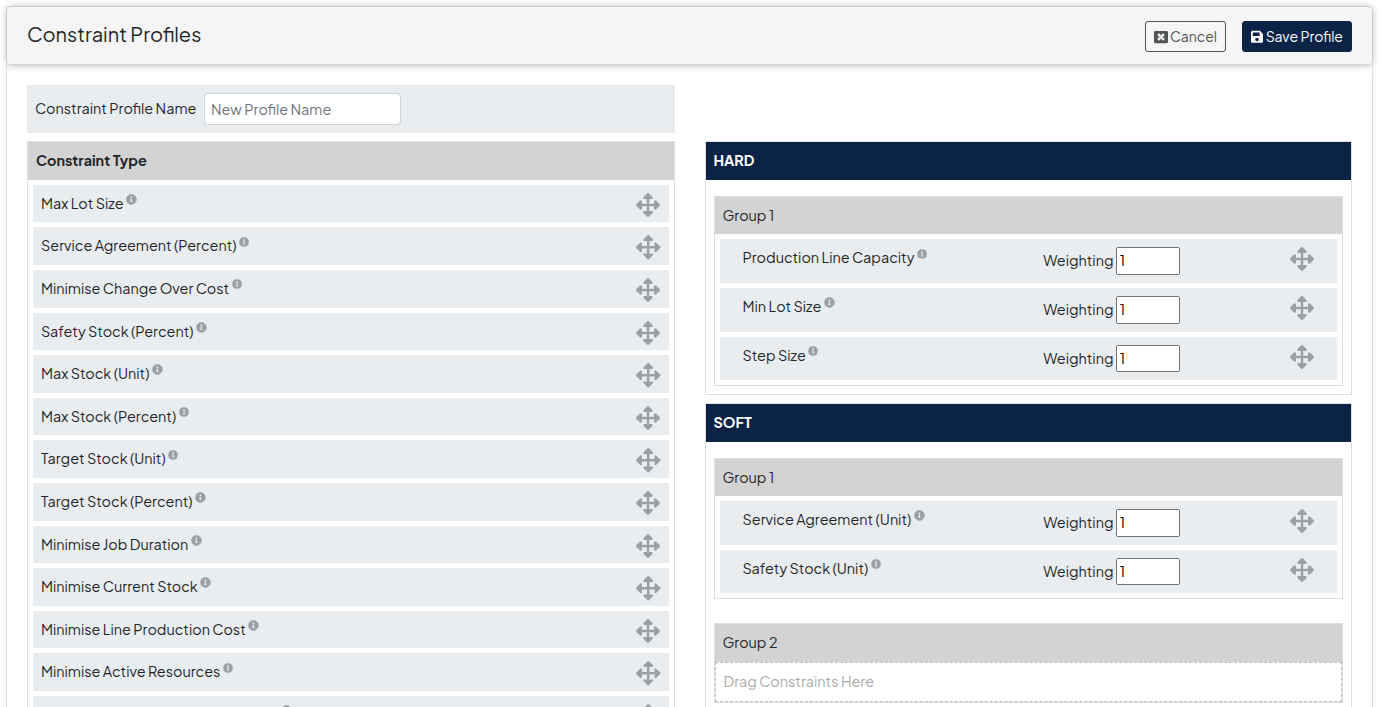
This new profile can then be changed by dragging and dropping the individual constraints to the required constraints categories (Hard, Soft, Group 1,2,3).
Dragging a constraint under the ‘Constraints Type’ category will take the constraint out of the profile.
Once the profile is configured, a new name must be added and by clicking the button, the new constraints profile will be saved and can now be applied to a solution profile.
Create New Profile
The second way to create a new profile is by clicking on the New Profile button.
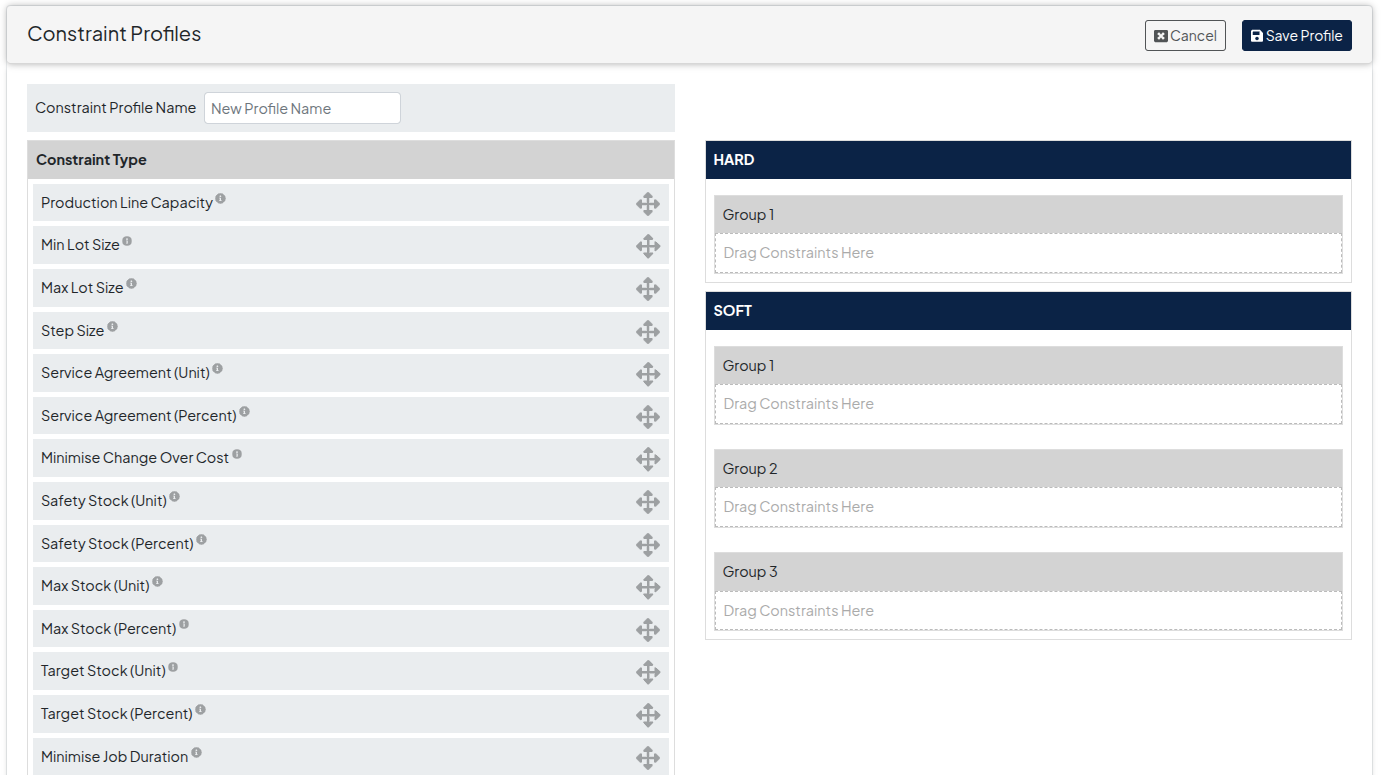
An unconfigured profile is created, from which the individual constraints can then be dragged and dropped into the required constraints categories (Hard, Soft, Group 1,2,3).
Once the profile is configured, a new name must be added and by clicking the button, the new constraints profile will be saved and can now be applied to a solution profile.