Auto Plan Configuration User Guide
Overview
The Auto Plan Configuration feature allows a planner to automate the creation of plans based on data already loaded into the Puls8 Replan service. These plans execute automatically based on your specified schedule.
- Automated Planning: Configure plans to run daily, weekly, or monthly at specified times
- Flexible Configuration: Utilize different constraint / grouping profiles / opening stocks for customized planning scenarios
- Manual Execution: Run plans on-demand with the "Execute Now" option
Getting Started
Accessing Auto Plan Configuration
Navigate to 'Auto Plan Configuration' under 'Configuration', you'll see a config form with various options.
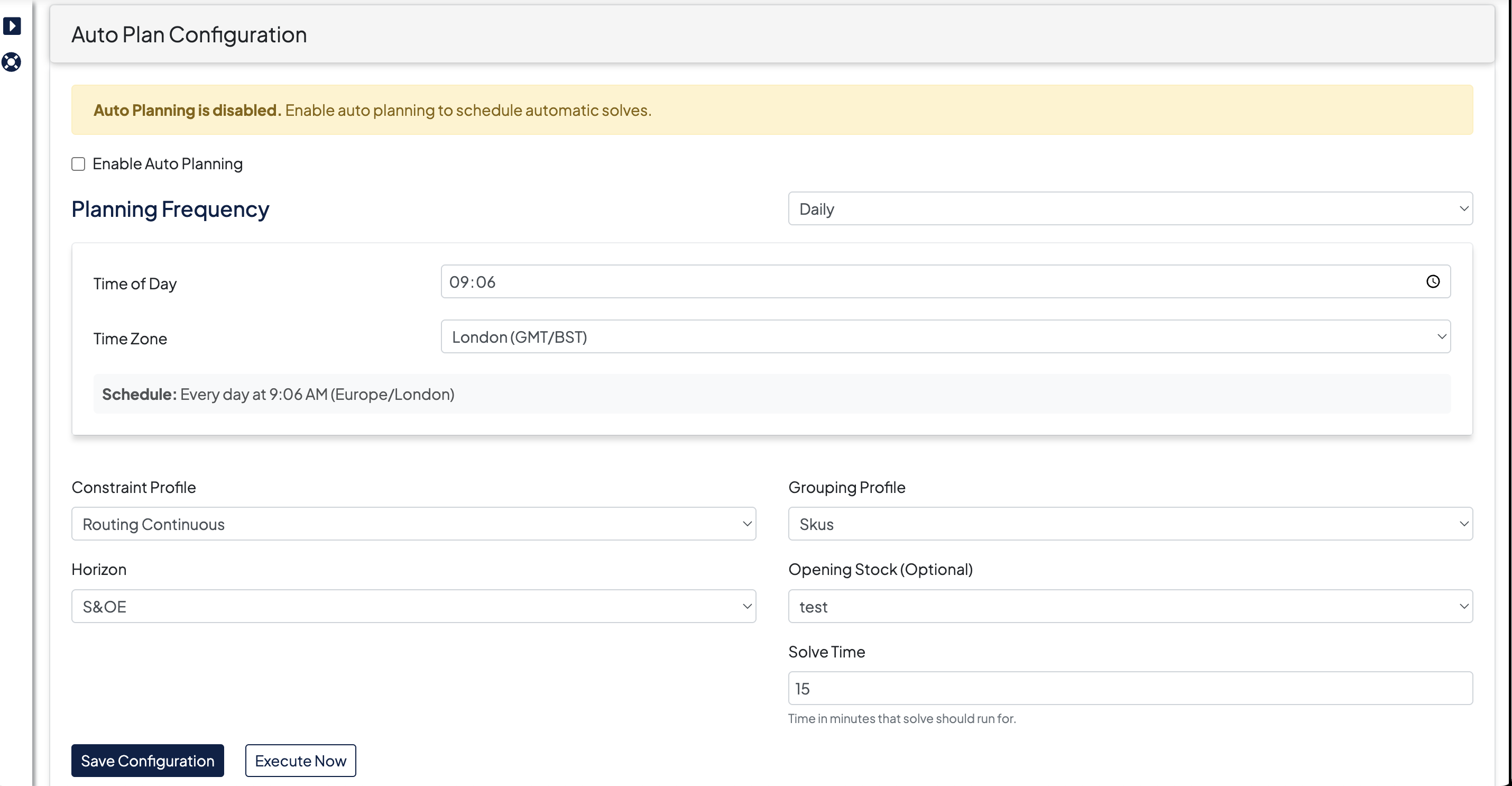
Configuration Options
1. Enable/Disable Auto Planning
- Enable Auto Planning: Check this box to activate automated planning. When enabled, the system will execute plans according to your defined schedule.
- When disabled, no automatic executions will occur, but you can still run plans manually.
2. Planning Frequency
Configure when and how often your plans should execute:
Daily
- Plans run every day at the specified time
- Example: "Every day at 2:00 AM (UTC)"
Weekly
- Plans run once per week on the selected day
- Choose from Monday through Sunday
- Example: "Every Monday at 3:00 AM (EST)"
Monthly
- Plans run once per month on the selected day
- Options include:
- Days 1-31 of the month
- "Last day of month" option for months with varying days
- Note: If you select day 29-31, execution will be skipped in months with fewer days. Consider using "Last day of month" for consistent end-of-month execution.
3. Profile Selection
Constraint Profile (Required)
- Select the constraint profile that defines the rules and limitations for your planning scenario
- Must be configured before saving the auto plan configuration
- If no profiles are available, you'll need to create one first
Grouping Profile (Required)
- Choose the grouping profile that determines how items are organized in your plan
- Works in conjunction with the constraint profile to shape your planning output
4. Planning Horizon (Required)
- Select the time period that your plan should cover
- Horizons define how far into the future the planning algorithm should consider
- Available options depend on your configured horizons
5. Opening Stock Snapshot (Optional)
- Choose how to handle initial inventory levels:
- NONE: Do not use opening stock data
- LATEST: Automatically use the most recent snapshot
- Specific Snapshot: Select a particular snapshot by name
- This affects how the planning algorithm calculates requirements and allocations
6. Solve Time
- Specify the time (in minutes) the planning algorithm should run
- Default: 60 minutes
Saving and Managing Configurations
Save Configuration
- After setting all required fields, click "Save Configuration"
- Success message will confirm the configuration is saved
Execution Options
Automatic Execution
- Once enabled and saved, plans will execute automatically according to the schedule
- The Auto Plan Summary shows the next scheduled execution time
- No manual intervention required
Manual Execution ("Execute Now")
- Click "Execute Now" to run the plan immediately
- Ensure you save your configuration before executing
- Does not affect the regular schedule